





Maxim
Member
-
Joined
-
Help @Errol - The site keeps logging me out now on laptop Chrome and cleaning cookies doesn't help. It's not possible to post anything. I had to login so many times just to get to write this and I am not sure that now when I will hit enter... it will post.
-
Still getting it non stop and it's coming just when I try to post too...
-
And again...
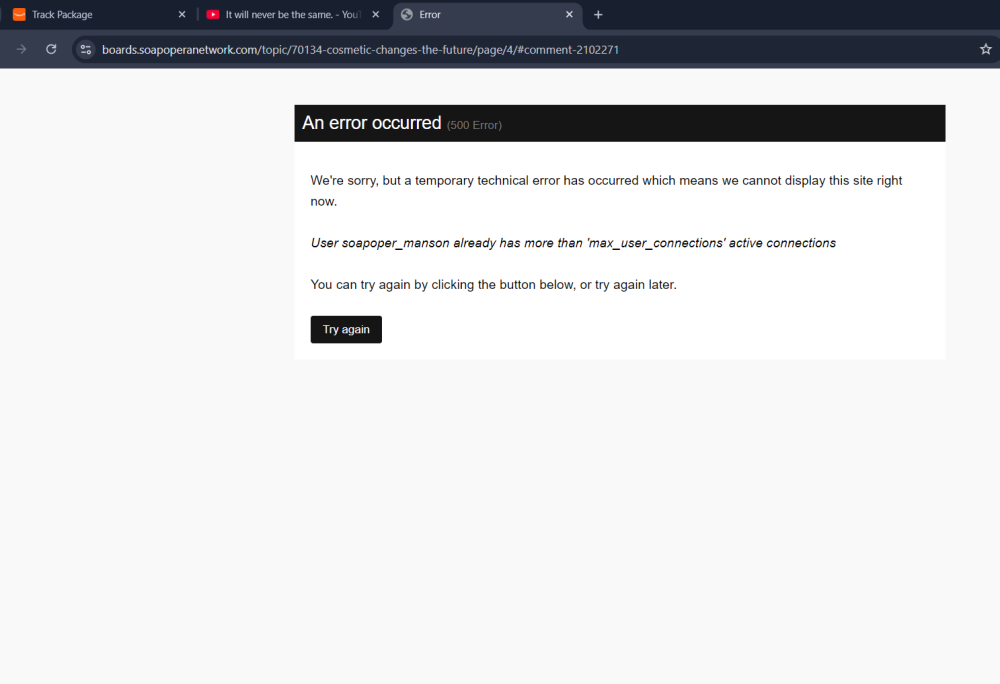
-
Just happened again - @Errol
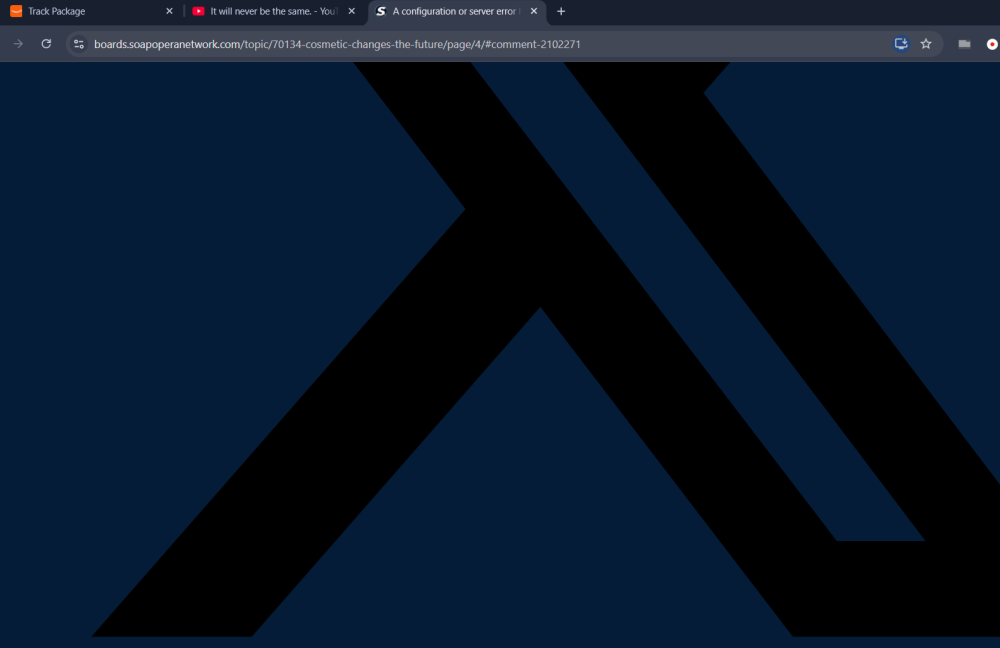
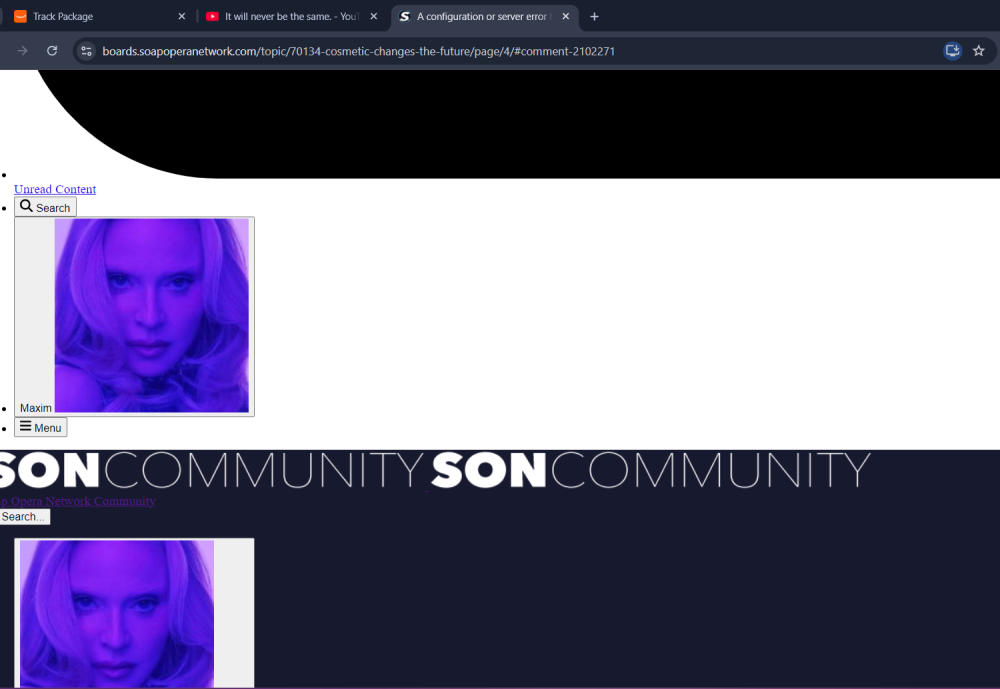
-
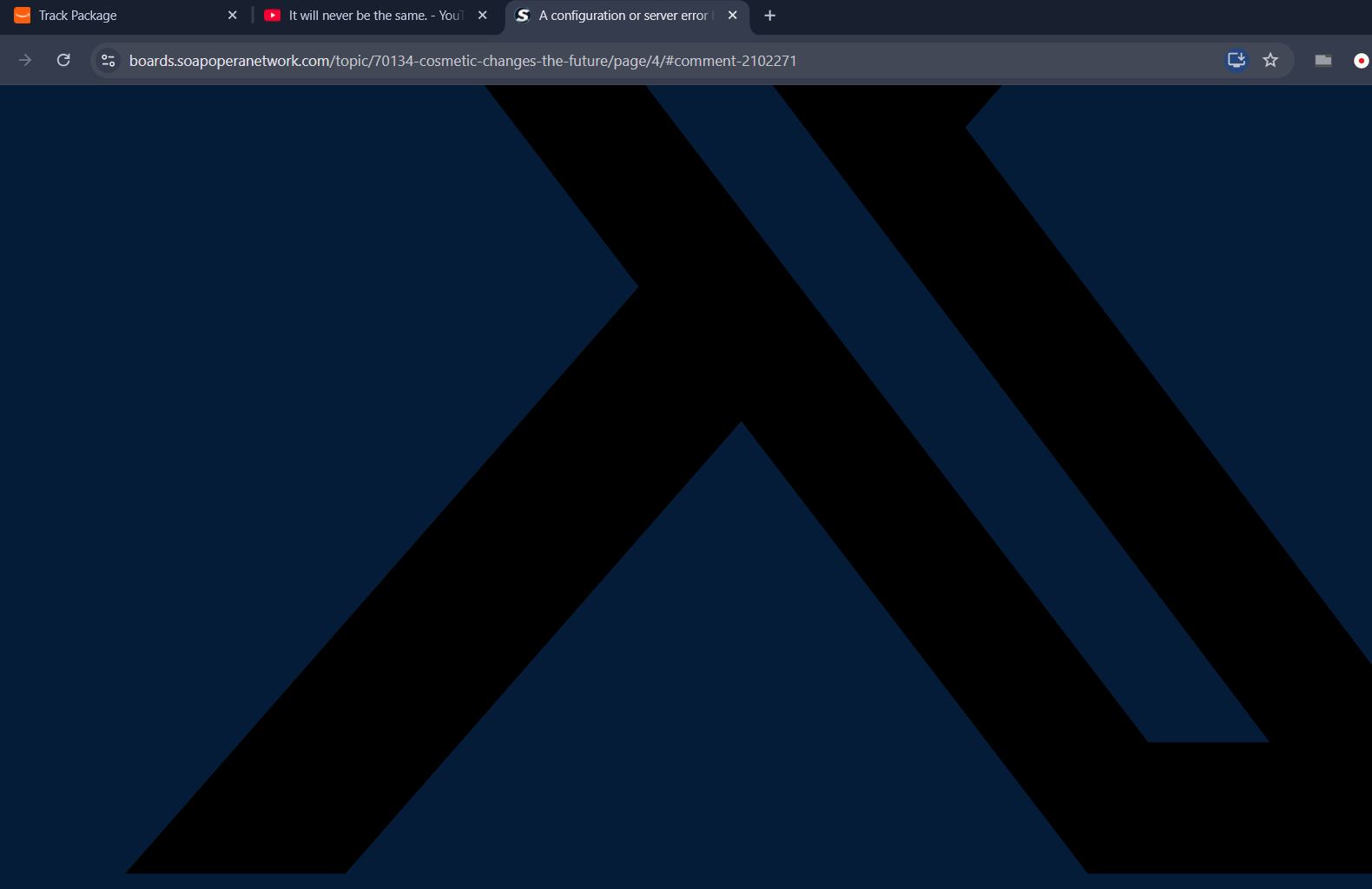
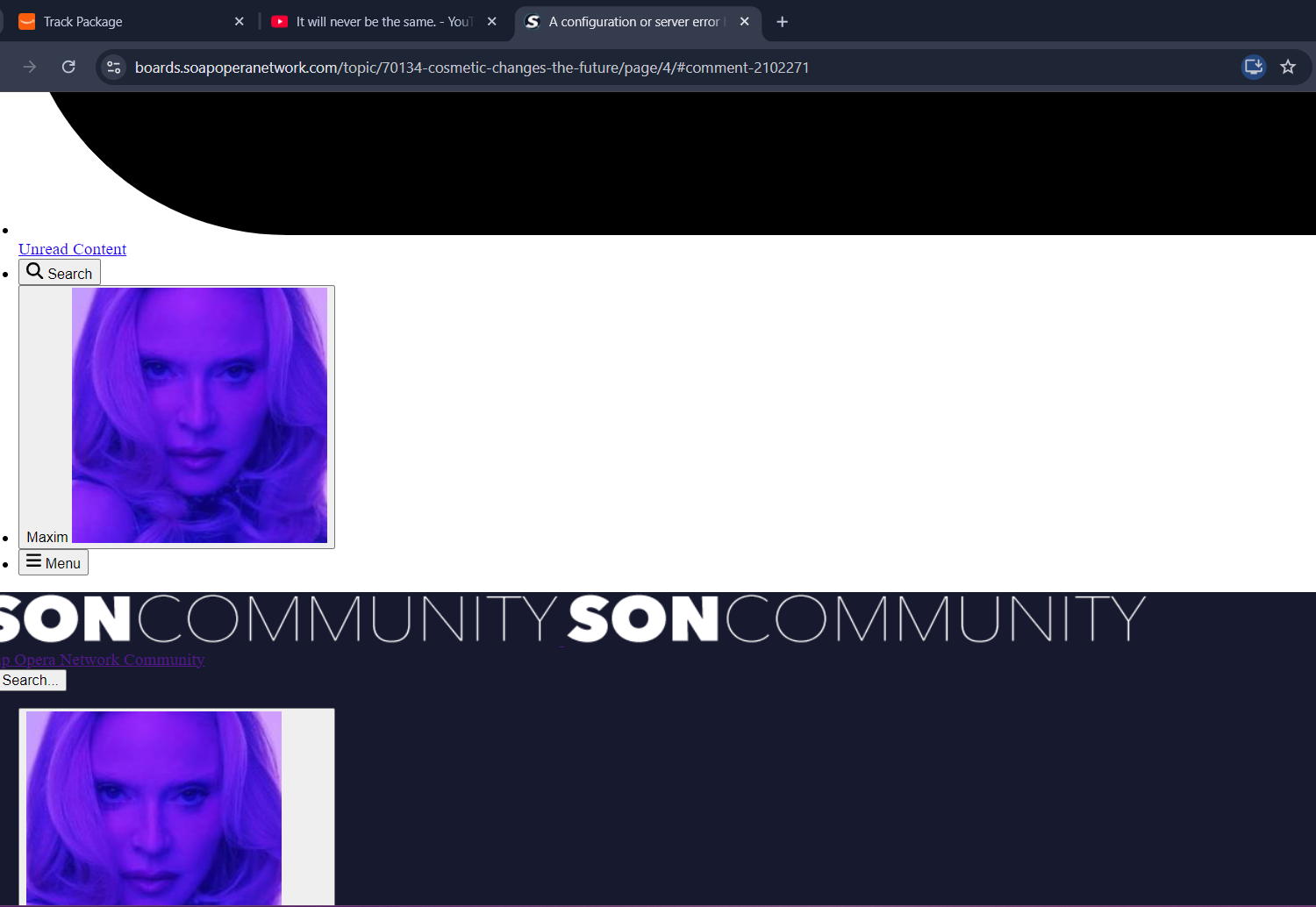
I've been getting the 500 error... and one more error that completely blocked the mobile browser from working for an entire day yesterday - it said something about a server request gone wrong, but I didn't take a screenshot - I didn't want to annoy you with constant posts about something not working... and I just prayed it will go away, but it didn't. Today it has been non-stop the 500 error, but this time - it stays for longer periods and when I refresh... I get a damaged, oversized version of the site and when I refresh again - the 500 error repeats. It used to go away very fast in the past and I would only get it 1 or 2 times a day at max. I wasn't going to say anything before I saw people here talking about it, because I thought you may be working on something with the site and that's something temporary that happens while the work is being done.
-
@Errol The error is coming and going every other click on the site right now for me. Both on phone and on laptop.
-
That's one bitch of an error!
-
I've been getting stuck on that error as well and I see the site in a damaged oversized way as well. I'm lucky I'm not in a glitch right now.
-
The site is unusable on any browser/phone with this constant error 500 non stop for the past 2 days.
-
People are starting to sound like AI in real life conversations too... Meaning... They are copying the same patterns and trash easy essayistic way ChatGP is "talking" to them. Its becoming quite disgusting.If only I could have this kind of discipline to be able NOT to watch and hear anything. It would be amazing to hear it in full as a complete new experience.

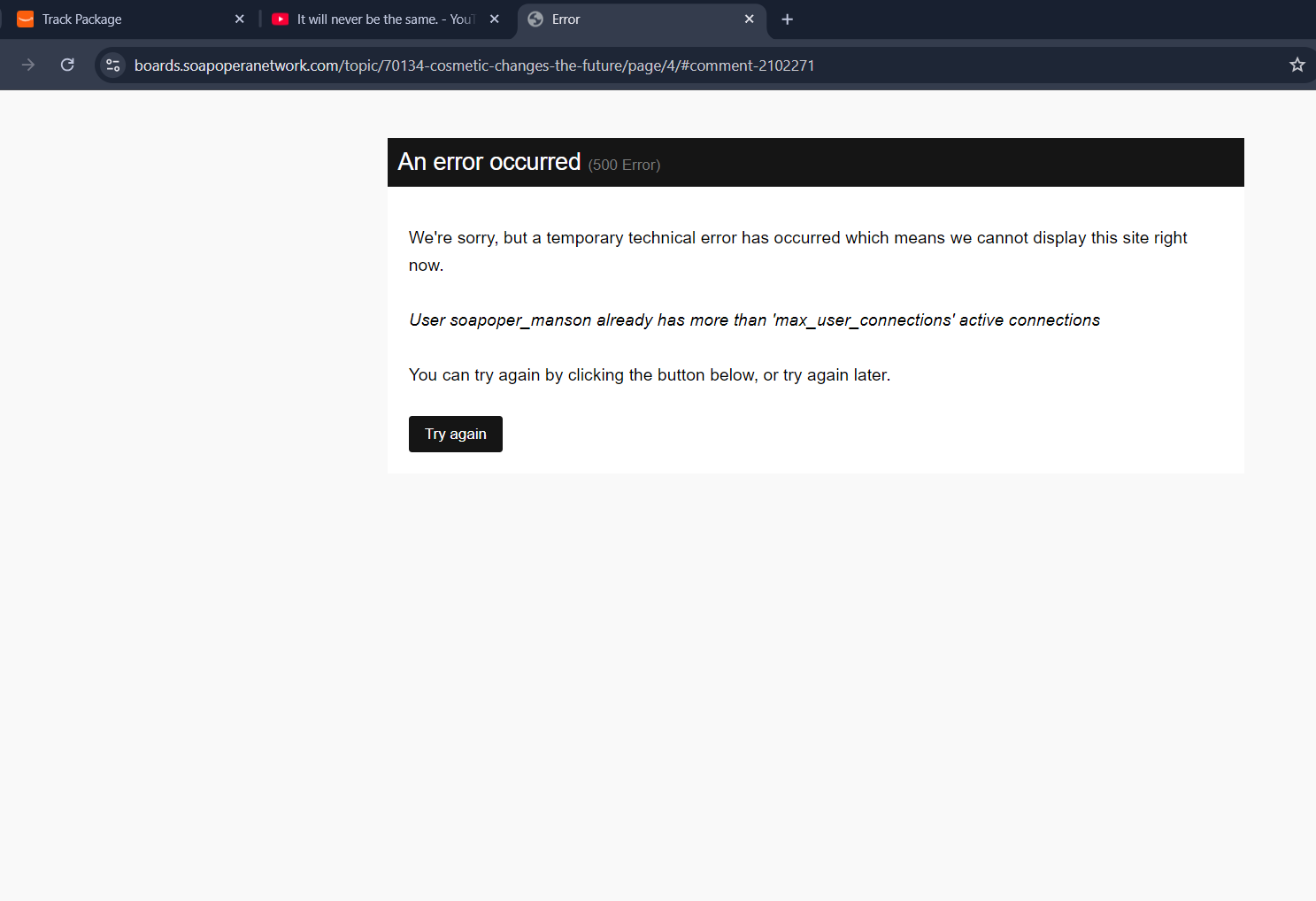

Important Information
By using this site, you agree to our Terms of Use and Privacy Policy

Account
Navigation
Search
Configure browser push notifications
Chrome (Android)
- Tap the lock icon next to the address bar.
- Tap Permissions → Notifications.
- Adjust your preference.
Chrome (Desktop)
- Click the padlock icon in the address bar.
- Select Site settings.
- Find Notifications and adjust your preference.
Safari (iOS 16.4+)
- Ensure the site is installed via Add to Home Screen.
- Open Settings App → Notifications.
- Find your app name and adjust your preference.
Safari (macOS)
- Go to Safari → Preferences.
- Click the Websites tab.
- Select Notifications in the sidebar.
- Find this website and adjust your preference.
Edge (Android)
- Tap the lock icon next to the address bar.
- Tap Permissions.
- Find Notifications and adjust your preference.
Edge (Desktop)
- Click the padlock icon in the address bar.
- Click Permissions for this site.
- Find Notifications and adjust your preference.
Firefox (Android)
- Go to Settings → Site permissions.
- Tap Notifications.
- Find this site in the list and adjust your preference.
Firefox (Desktop)
- Open Firefox Settings.
- Search for Notifications.
- Find this site in the list and adjust your preference.